
A website sitemap is a plan of every page on a site and how those pages connect, usually drawn as a tree from the homepage down. Designers and developers use a visual sitemap to plan navigation before building a new site, and content teams use one when reorganizing an existing site. It’s different from an XML sitemap, a file that helps search engines find pages.
Below are 19+ sitemap templates. They include a simple site map, a detailed version, a hierarchical site map diagram, a top-level site map and a sitemap example to work from. Each is editable and free to download.
Plan around what visitors are trying to do, not around your company’s internal structure. Where you can, keep important pages within three clicks of the homepage.
For other planning diagrams, you can also check out our flow chart templates for user journeys and table of contents templates for structuring long documents.
Best Site Map Templates
Example Site Map Template

Site Map Diagram Template

Detailed Site Map Template
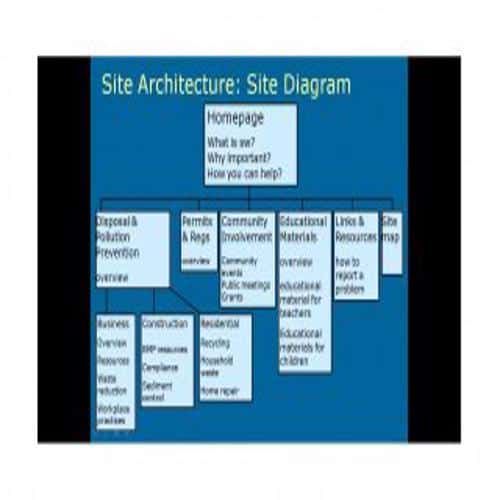
Hierarchical Site Map Template
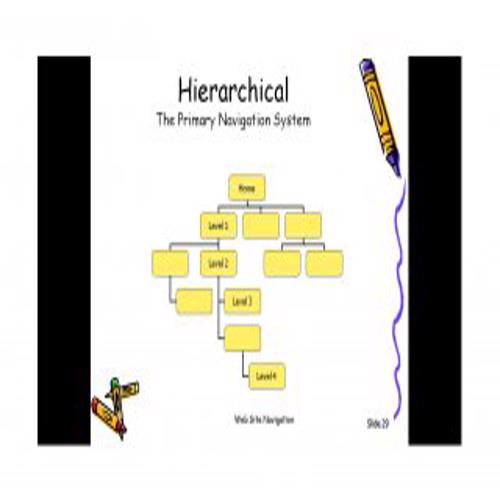
Unique Site Map Template
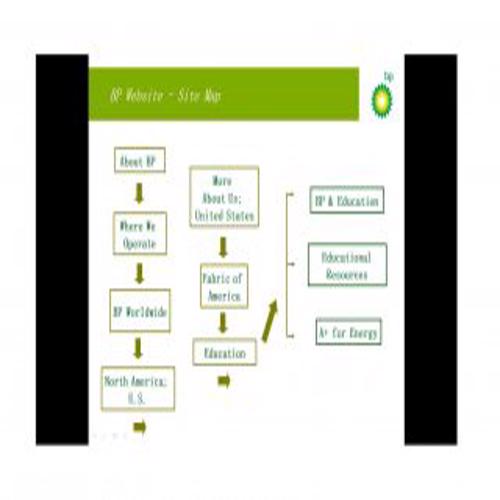
Special Site Map Template
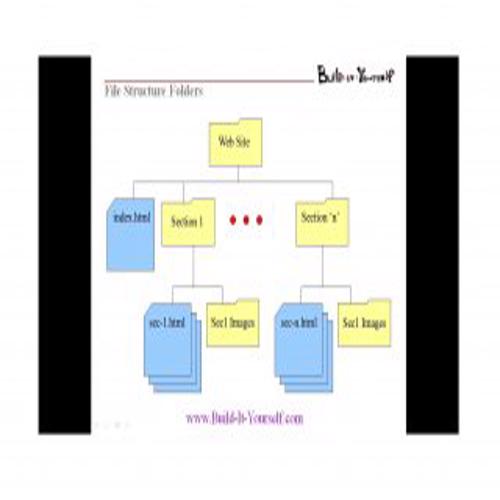
Simple Site Map Template
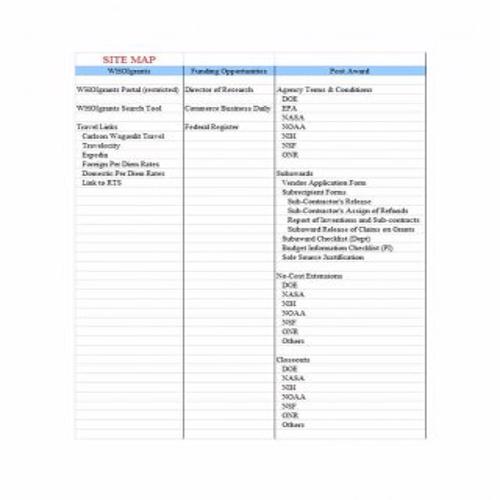
Top Level Site Map Template
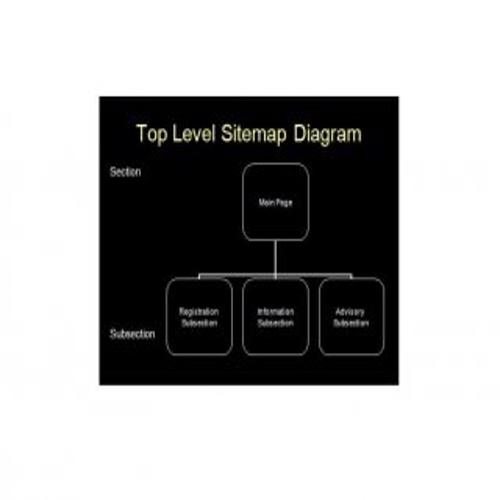
Effective Site Map Template
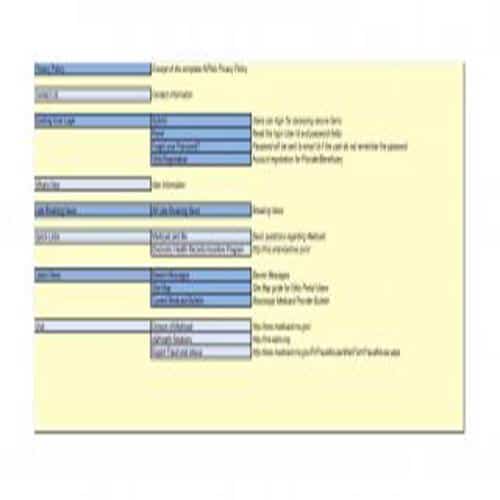
Important Site Map Template
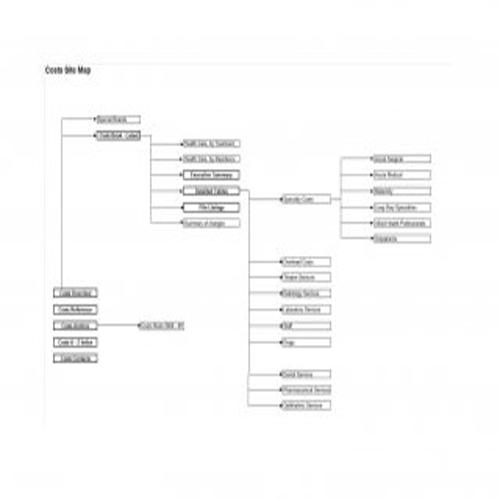
Components of a Site Map Template
The content, details and design of a site map template vary with the type of website. However, the following basic components should be included in any site map template.
1. Homepage:
This is the most important and prominent part of a site map template, as it is shown at the top. In some cases, the homepage is also shown as part of the primary navigation.
2. Primary Navigation:
Primary navigation covers the main and most important pages of a website. These pages sit at the top of a site map, which is why they are also known as the ‘parent’ pages of a website.
3. Secondary Navigation:
Secondary navigation covers pages or items of secondary importance. These pages are also known as ‘child pages’ and are included in a drop-down.
4. Tertiary Navigation:
Tertiary navigation, or tertiary pages, come after the secondary navigation. These pages are usually included in, or as a sub-category of, a category within the primary or secondary navigation.
5. Call to action items or buttons:
These are separately highlighted buttons or items that complete an action or task, such as a download button, a buy now button or a sign-up button.
7. Special File Types:
A site map should also identify downloadable files, such as a PDF or Word document.
8. External Links:
The site map should include external links to other websites, such as important links to social media sites or other external links within the content for reference.
Sample Site Map Templates
Useful Site Map Template
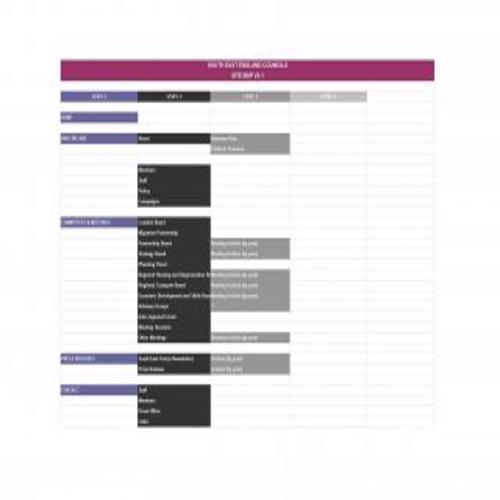
Typical Site Map Template
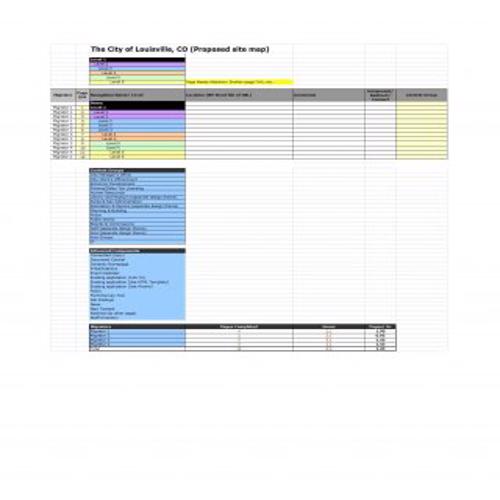
Catchy Site Map Template
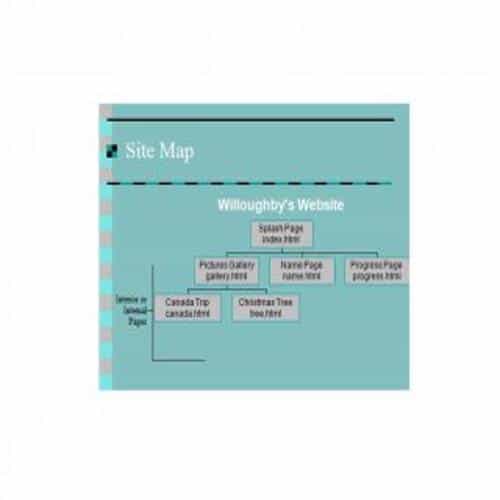
Draft Site Map Template
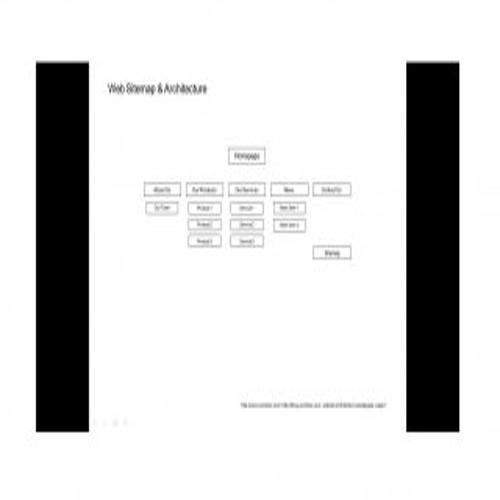
Site Map Blank Template
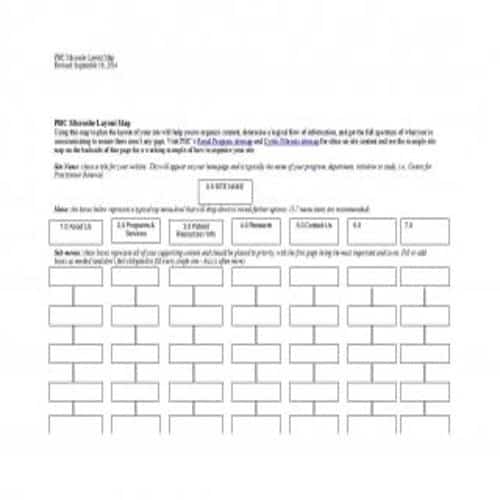
Standard Site Map Template
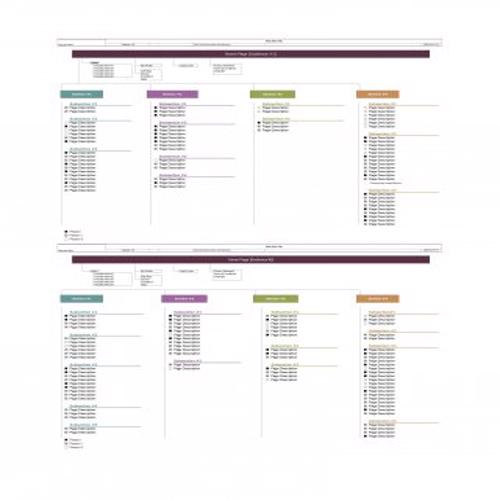
Model Site Map Template
Basic Site Map Template
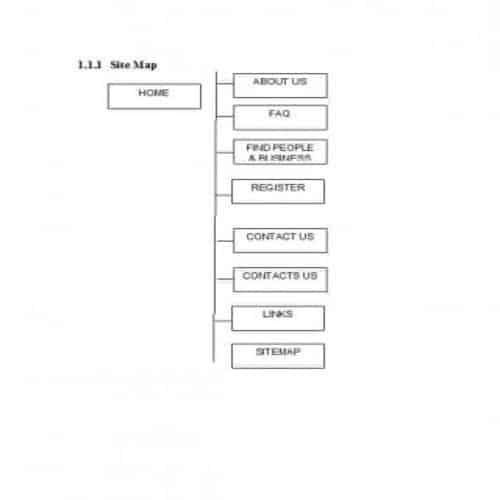
Exclusive Site Map Template
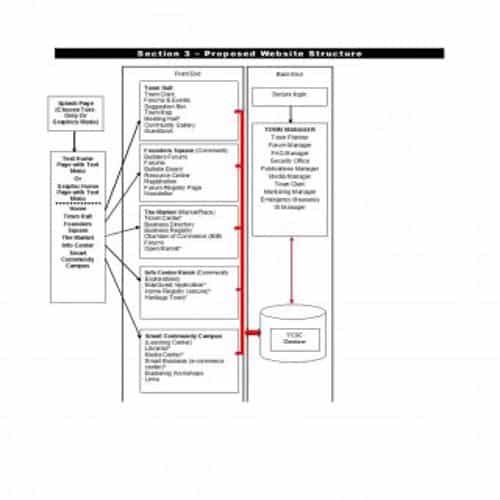
Particular Site Map Template
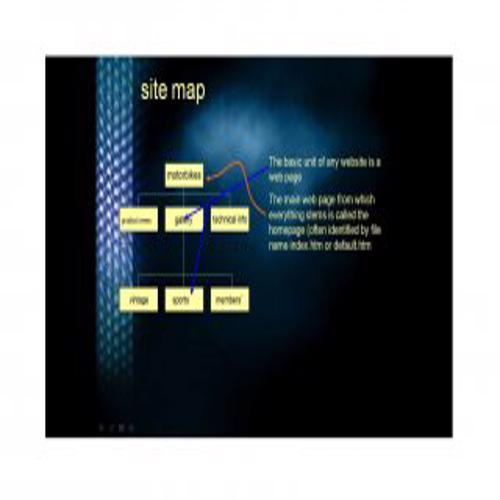
Creating a Custom Site Map Template using MS WORD
You can also create your own site map template in MS Word. Here, creating a template means only designing it. The main thing is the content to include in it, which you should have prepared already. As mentioned earlier, the content of a site map depends on the type and nature of the website.
To create a custom site map template, follow these steps:
- First of all, open your MS WORD software.
- Move the cursor to the top and click on the ‘Insert’ tab.
- From the ‘Insert’ tab, click on the ‘Smart-Art’.
- After clicking the ‘Smart-Art’, select an ‘Organizational Chart‘. A ready made hierarchical structure will open up.
- Since you want to insert your own information, erase everything in the ‘Type your text here’ dialog box.
- Convert this structure into a tree. Type the text in the first box, then press ENTER and TAB to create a child of the first box.
- If you want to create more boxes in the same level, then just press ENTER after each box.
- To create a child box for any of these boxes, move the cursor below the box you want and press ENTER and TAB.
- To customize it further, you can move the cursor to ‘Colors’ tab and change the color of the structure.
Planning a Website Sitemap Around User Tasks
Choose a visual sitemap to plan page relationships and navigation. An XML sitemap serves a different technical purpose and does not replace a usable information architecture.
- Identify the main user tasks and required content.
- Group pages under clear categories and define relationships.
- Check paths to important information and review the structure with representative users.
Worked Example
Example: a service site may group its offers under “Services” and place individual service pages beneath it. If booking is a primary task, make the booking route clear rather than hiding it several levels below company background pages.
Common Mistakes to Avoid
Avoid using internal department names that visitors do not recognize. Do not assume a tidy diagram proves users can find the information.
Related Templates
- Business Card Templates
- Flow Chart Templates
- Business Brochure Templates
- Organizational Chart Templates
Frequently Asked Questions
Is a visual sitemap the same as an XML sitemap?
No. A visual sitemap supports planning and communication. An XML sitemap lists URLs for search-engine discovery and has its own technical format.
Should every page appear in the main navigation?
Not necessarily. Show the full content structure in planning, then choose navigation that supports key user tasks without overwhelming visitors.
