
A table of contents is the list at the front of a document that shows its chapters or sections and the page each one starts on. It lets readers jump straight to what they need. Students use one in a thesis or dissertation, businesses in reports, manuals and proposals, and authors in books and ebooks.
This page offers 20+ table of contents templates, editable and free to download. Each gives you a ready layout, so you just type in your headings and page numbers. Use one as a table of contents format for a school assignment, or as a table of contents example for a longer business document.
Build the table last, once your headings are final, or use your editor’s heading styles so page numbers update on their own. Then check that every entry matches its heading word for word.
A table of contents is usually part of a longer document. You may also need our cover page templates, booklet templates and instruction manual templates to put the full document together.
Table of Contents Templates in MS Word
Formal Design Table of Contents
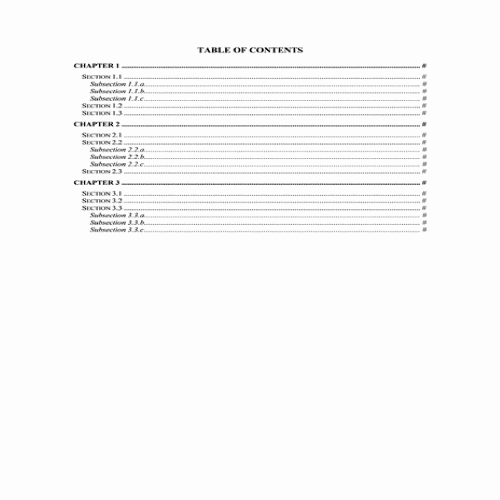
Fancy Design Table of Contents
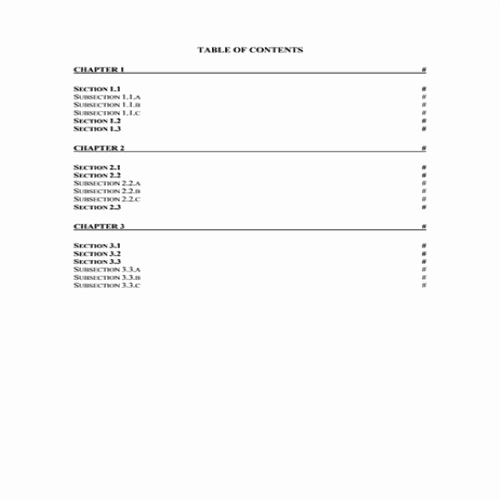
Distinctive Design Table of Contents
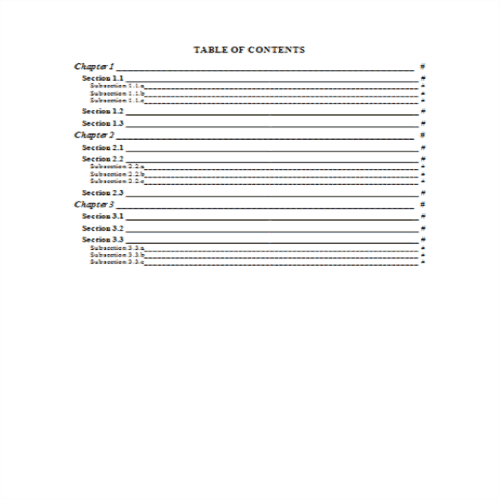
Table of Contents Template with Guide

Table of Contents with Cover

Typical Table of Contents
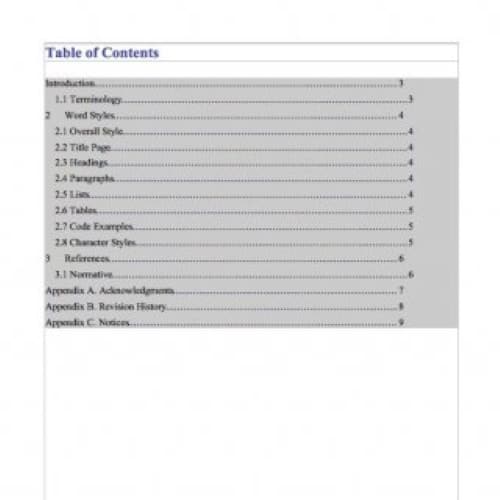
Highlighted Table of Contents
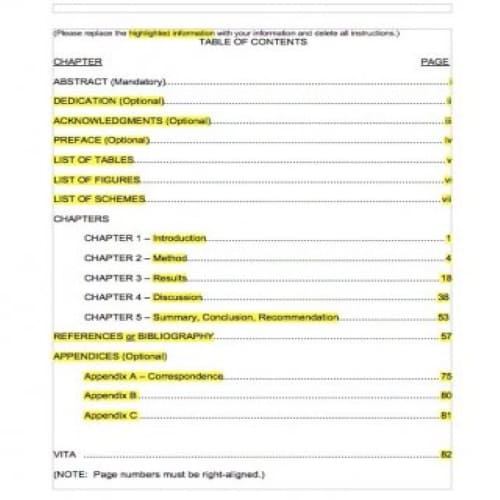
Thesis Table of Contents in WORD
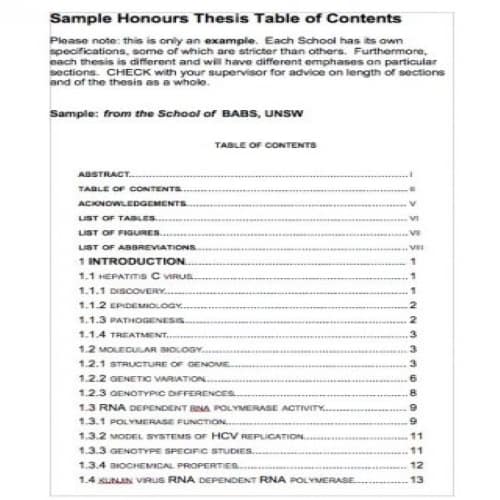
Detailed Table of Contents
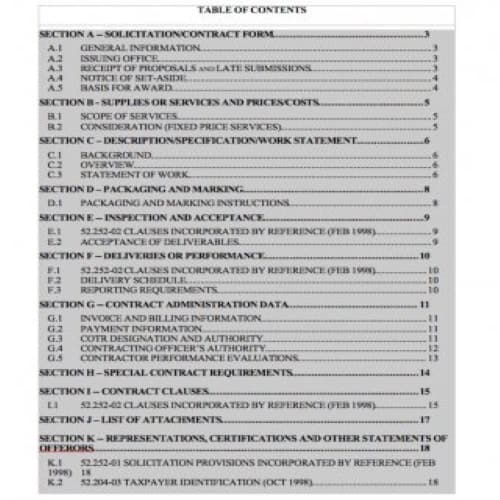
Lengthy Table of Contents
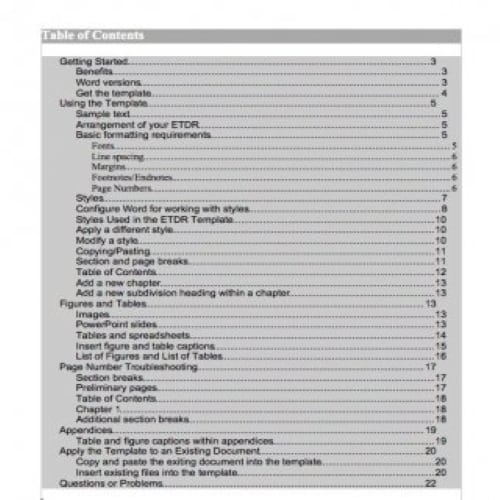
Short Table of Contents

Sample Table of Contents
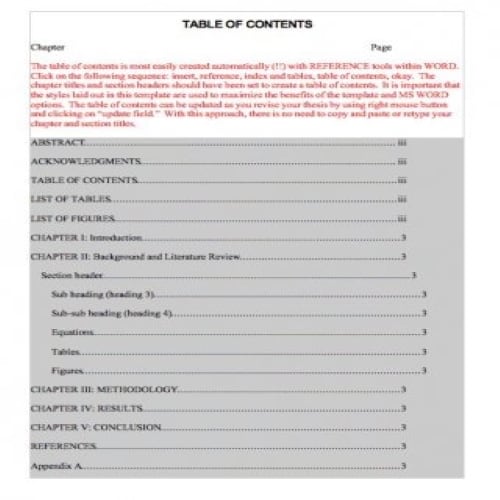
Simple Table of Contents Format

Research Work Table of Contents
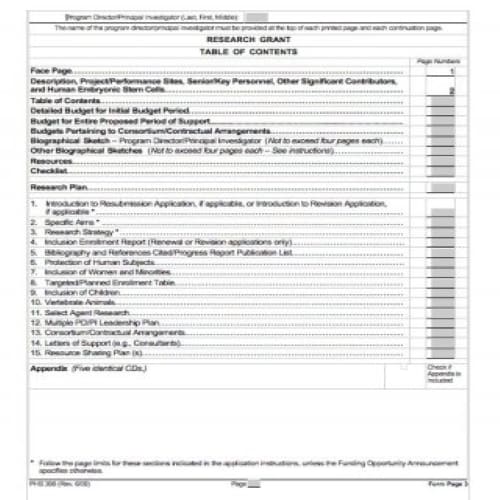
Two Columns Table of Contents
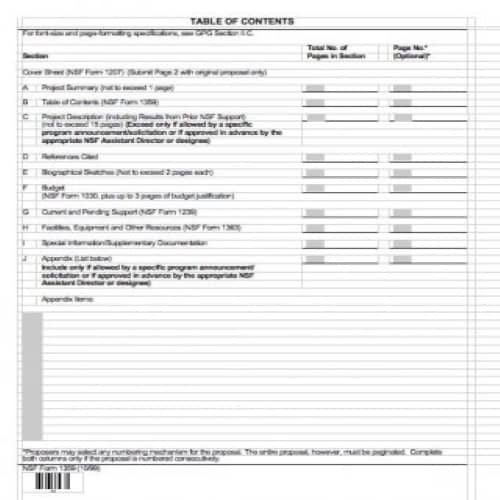
Benefits of a Table of Contents
A table of contents at the start of a book or any other written material looks more professional and makes the book more appealing. Including a table of contents is not a hard and fast rule, even in a book, but it provides the following benefits:
- It helps you to to arrange and organize your material when you are editing or creating a document.
- First impressions last. In a book, the first impression comes from the TOC. Before starting to read the book, the reader will look at the TOC first.
- If the TOC is well designed and prepared, then it will catch more attention of the reader.
- A book or report with a table of contents has a more professional and attractive appearance than a document without one.
- A table of contents is a guide that helps readers navigate the book easily. A TOC also helps readers locate a particular point or piece of information in the book.
- A table of contents makes it easy to discuss a particular document or piece of writing. For example, when reviewing or discussing a report in a meeting, it would be very difficult to do so if the report had no proper TOC section.
Table of Contents Templates in PDF
Short Table of Contents

Lengthy Table of Contents
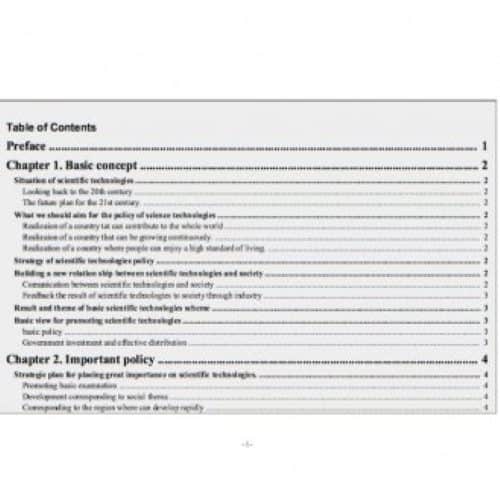
Decent Table of Contents
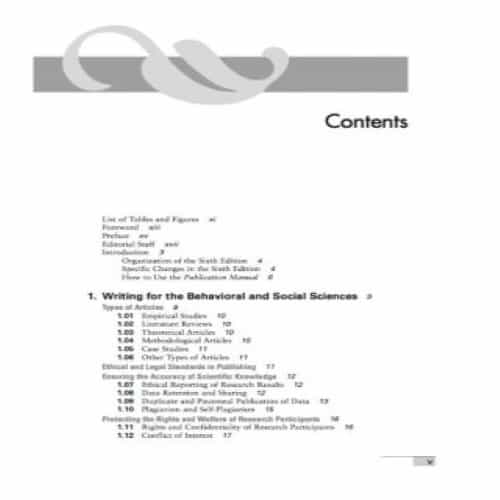
Thesis Table of Contents in PDF
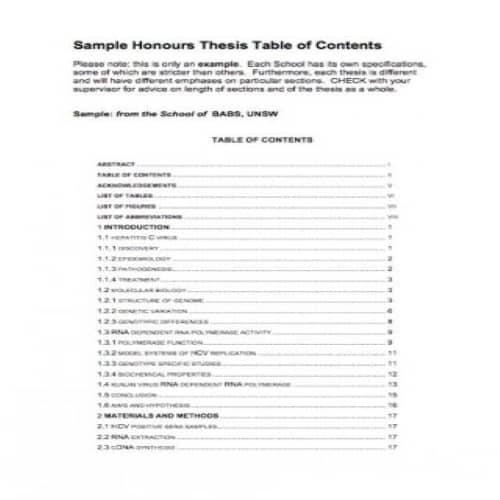
Extended Table of Contents
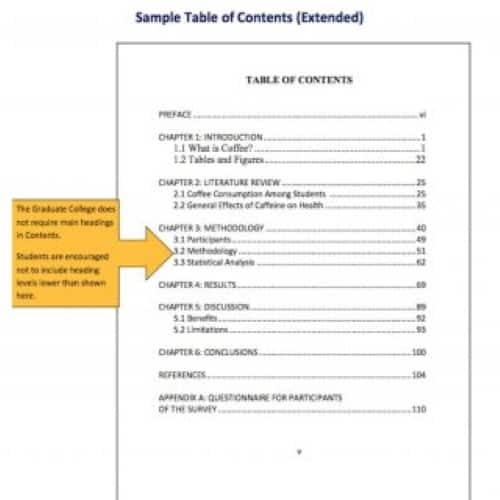
Brief Table of Contents
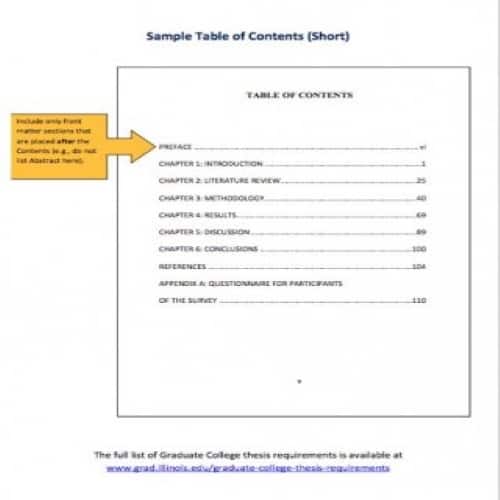
Simple Table of Contents
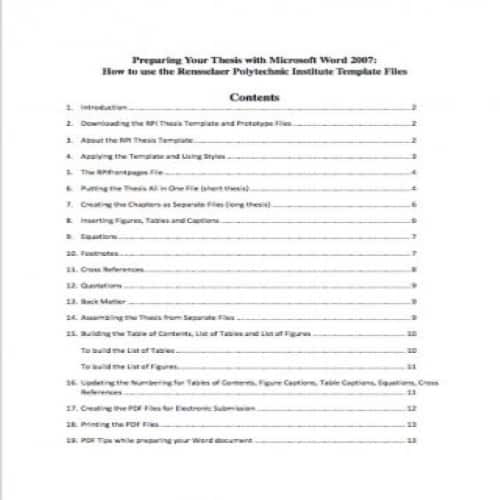
Explanatory Table of Contents
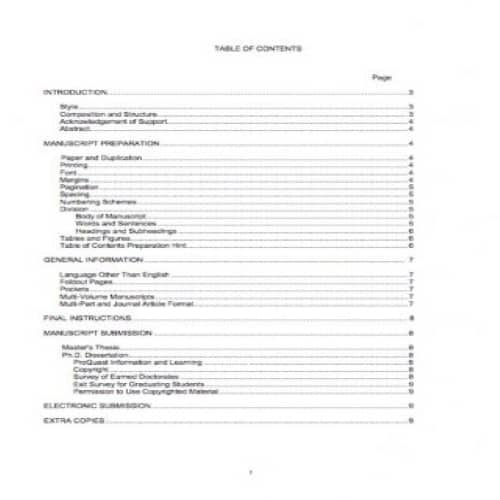
Table of Contents Example
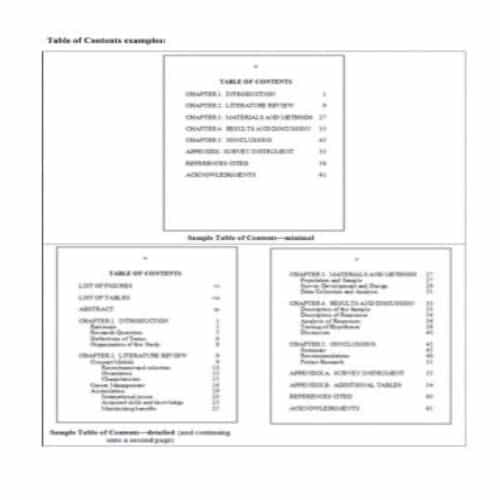
Elegant Table of Contents
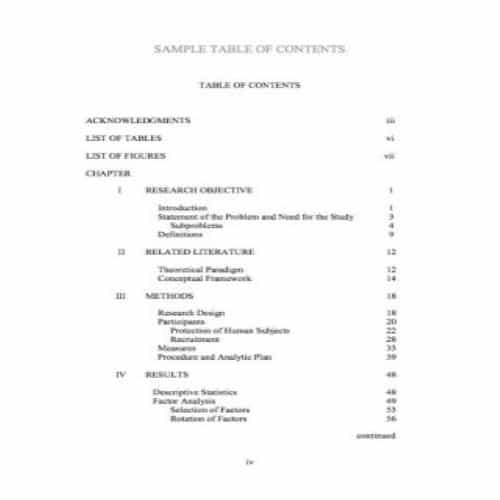
What to Include in a Table of Contents
- Chapter or section titles
- Subheadings
- Page numbers
- Dot leaders
- Lists of figures and tables, if needed
- Consistent formatting
Tips for Using These Table of Contents Templates
Use heading styles in Word so you can generate and update the table automatically.
How to Choose a Table of Contents Template
The best table of contents template makes it easy to find a section without making the document feel crowded. Start by considering the document’s length and its audience. A short business proposal may need only first-level section titles and page numbers. A training manual with multiple procedures may benefit from indented subheadings. A dissertation often follows university-specific formatting rules, so its required front matter and chapter numbering should guide the design rather than the template’s decorative style.
Choose a clean layout if people will read or print the document frequently. Dot leaders—the rows of dots connecting a heading to its page number—can make a long contents page easier to scan. A minimal layout may look better for a portfolio or short report. If the file will be shared digitally, working hyperlinks may matter more than elaborate typography. The preview can help you select a starting design, but always check how the editable file handles updates.
Automatic vs. Manual Tables of Contents
An automatic table of contents in Word is generated from the heading styles used throughout the document. Instead of typing every entry and page number, you apply Heading 1 to main sections and Heading 2 or Heading 3 to subsections, then insert a table through the References tab. When headings or pagination change, you update the table. This is usually the safer approach for long documents that will be revised repeatedly.
A manual table of contents can work for a short or fixed publication, especially if your chosen design is a static layout. However, you must correct every page number and section title by hand after edits. Some downloadable templates are primarily visual examples; others may contain dynamic Word fields. Check the file itself before assuming a template updates automatically.
Step-by-Step: Create a Table of Contents in Microsoft Word
- Prepare the document headings. Apply Word’s built-in Heading 1 style to main chapters or sections and Heading 2 to the next level. Do not rely on bold formatting or larger font size alone; those do not consistently define document structure.
- Check the heading hierarchy. A subsection should appear under the correct parent section. Avoid jumping from Heading 1 directly to Heading 4 without a reason, as it can make the document and contents page confusing.
- Insert the contents page. Position the cursor after the title page or other required front matter. Use References, Table of Contents, and choose an automatic style or configure a custom one.
- Choose the level of detail. A brief report may display only Heading 1 and Heading 2 entries. A detailed manual may need three heading levels. Include only levels that improve navigation.
- Set leader dots and alignment. When using a traditional print layout, right-align the page numbers and consider dot leaders to connect long headings with their page references.
- Update after revisions. When text moves or headings change, use the table’s update function. Updating page numbers alone may be enough after minor layout changes; updating the entire table is safer after renaming or adding sections.
- Review the final output. Confirm every entry leads to the right heading and that the page numbers, indents and links still work in the PDF you intend to distribute.
What a Well-Organized Contents Page Looks Like
A simple project report might begin with an executive summary, followed by an introduction, objectives, methodology, findings, recommendations and appendices. Main sections would align consistently, while any subsections would be indented under their parent headings. This arrangement tells readers what to expect before they start reading and gives them a quick route to the information they need.
A dissertation might use preliminary pages for the abstract, acknowledgments and lists of figures or tables, then separate chapters for literature review, methods, results and discussion. Institutions vary in whether the abstract, references and appendices appear in the main contents page. Follow the required style guide and numbering convention rather than copying a generic example exactly.
Formatting Tips for Professional Documents
Keep the font family consistent with the surrounding document, and use size, spacing and indentation to establish hierarchy. Avoid switching between multiple decorative typefaces just because the download contains them. If your document is printed, check that page numbers remain readable and do not wrap onto an extra line. If it is mostly viewed on screens, test whether the section names are clickable after export.
Long headings can push page numbers out of alignment. You may be able to shorten section titles while retaining their meaning; otherwise use a layout that allows wrapping cleanly. Do not shorten the contents entry so much that it no longer matches the actual heading. Consistency is more helpful to readers than a perfectly symmetrical page.
Common Table of Contents Problems and Fixes
A Heading Does Not Appear
Check whether the text uses the appropriate heading style. Merely selecting a larger font or making a line bold may leave it as ordinary body text. After changing the style, update the entire table. Also confirm that your table is configured to show the relevant heading level.
The Page Numbers Are Wrong
Recalculate the document’s layout first, especially if images, tables or page breaks were inserted. Then update the table. Review section breaks and special page-number formats: preliminary pages sometimes use Roman numerals while the main body starts with Arabic numerals. Make sure the numbering scheme matches the instructions for the publication.
Entries Are Missing from a PDF
Test the exported document rather than assuming the Word view will transfer perfectly. Depending on the export method, hyperlinks may be retained or lost. Use an export setting that preserves document structure and links when available. For accessibility, check that headings are marked semantically and that readers can navigate the document with assistive technology.
The Table Is Too Long
Reduce the displayed heading levels if the table is cluttered with minor subtopics. Do not delete required chapters just to shorten the page. A lengthy technical manual may reasonably need several contents pages; the goal is clarity, not forcing everything onto one sheet.
How to Adapt Templates for Different Uses
School assignments: prioritize the sections your teacher requests, use straightforward numbering and double-check instructions about which preliminary pages count. Business plans: focus on executive summary, market research, operational plan, finances and appendices so stakeholders can locate key decisions quickly. Instruction manuals: organize entries by tasks and include safety or troubleshooting sections where relevant. Books and ebooks: use descriptive chapter names and test digital navigation on the format that readers will actually use.
After customizing a downloaded design, remove sample entries, update page numbers and examine the document from the reader’s point of view. A contents page should accurately reflect the final document; it is not enough for the template to look attractive in isolation.
Final Table of Contents Checklist
- Every main section is listed in the correct order.
- Subheadings appear at the intended indentation level.
- Titles and spelling match the document headings.
- Page numbers, numbering systems and dot leaders are consistent.
- Hyperlinks work in the final digital version, if required.
- Any institutional or organizational formatting rules are met.
- No sample text, outdated section titles or placeholder numbers remain.
Matching a Table of Contents to a Document
Use the template that fits the underlying activity and the information you actually need to record. Here are practical distinctions that help when reviewing the available designs:
Formal research report
Reflect the actual heading hierarchy and include page numbers.
Training manual
Use clear sections and actionable task names.
Long business proposal
Lead readers to the decision, budget and implementation sections.
Short booklet
Avoid an unnecessarily complicated hierarchy.
Before You Finalize the Template
- Use heading styles consistently before generating the table.
- Update page numbers after final edits.
- Check alignment and leaders in exported PDF files.
- Avoid listing too many minor headings where navigation becomes harder.
Related Templates
- Organizational Chart Templates
- Cover Page Templates
- Flow Chart Templates
- Certificate of Appreciation Templates
Frequently Asked Questions
How do I create an automatic table of contents in Word?
Apply appropriate heading styles to the document, then insert a table of contents using the relevant References controls in your Word version. Update it after editing and check the exported document so headings and page numbers agree.
Where should the table of contents appear?
Follow the required academic, publisher or organization style. It commonly appears in the front matter, but the position relative to an abstract, acknowledgements or other sections is not universal.
Why are some headings missing from the contents?
Check the heading styles, included levels and contents settings. Text that only looks like a heading may not be included automatically. Correct the structure and update the table rather than typing page numbers over the generated entries.
